 Revapin
How to Create Your First Pinterest Board
A board is where your saved pins live, grouped under a theme like "kitchen ideas" or "brand references". Making one takes under a minute, and it's the first thing to do before you start collecting, so your pins land somewhere sensible instead of a single pile.
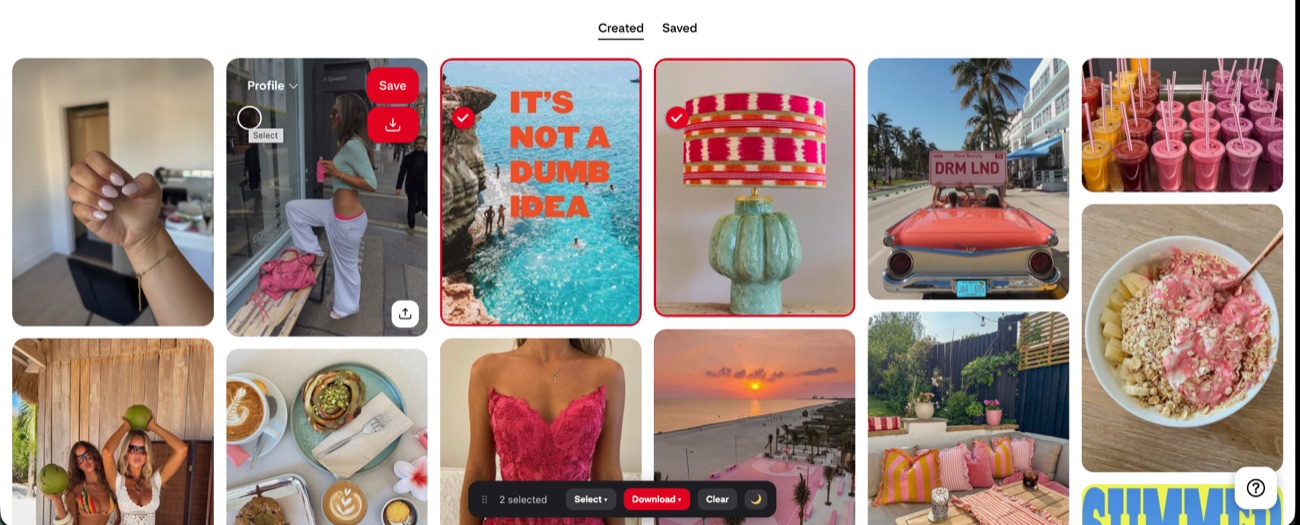
Create the board
On your profile, click the plus button and choose Board. Give it a name, and if you want it hidden from your public profile, flip the secret toggle before you save. That's the whole thing. You can create as many boards as you like, so there's no reason to cram unrelated ideas into one.
Name it so you'll find it later
The name doubles as a label and as something Pinterest reads when deciding what to show you. A few things help:
- use plain words you'd actually search, not clever titles;
- keep it specific — "small kitchen storage" beats "home";
- leave room to split it into sections once it grows.
Add your first pins
Search for something you're planning, and save a handful of pins to the new board. Aim for pins you'd genuinely reference, not everything that looks nice, since a tight board stays useful longer than a huge one. Once you have twenty or thirty, the board starts feeling like a real collection.
Keep a copy of the ones that matter
Pins can disappear when the original poster deletes them, so a board you've put effort into isn't as permanent as it looks. Once you've built one worth keeping, Revapin downloads its pins straight to your computer as images or a folder, so a deleted pin doesn't take your reference with it.
Start with one board on something you're actually working toward, keep the name specific, and add sections when it gets big. That's really all there is to running a board that stays useful.
Revapin is not affiliated with, sponsored by, or endorsed by Pinterest. Pinterest is a trademark of Pinterest, Inc.