 Revapin
How to Edit or Delete a Pin After Posting
You can change most of a pin after it's published — the title, description, destination link, and which board it lives on — without deleting and re-uploading. The one thing you can't swap is the image itself. Here's where the edit controls are and how to clean up a board in bulk.
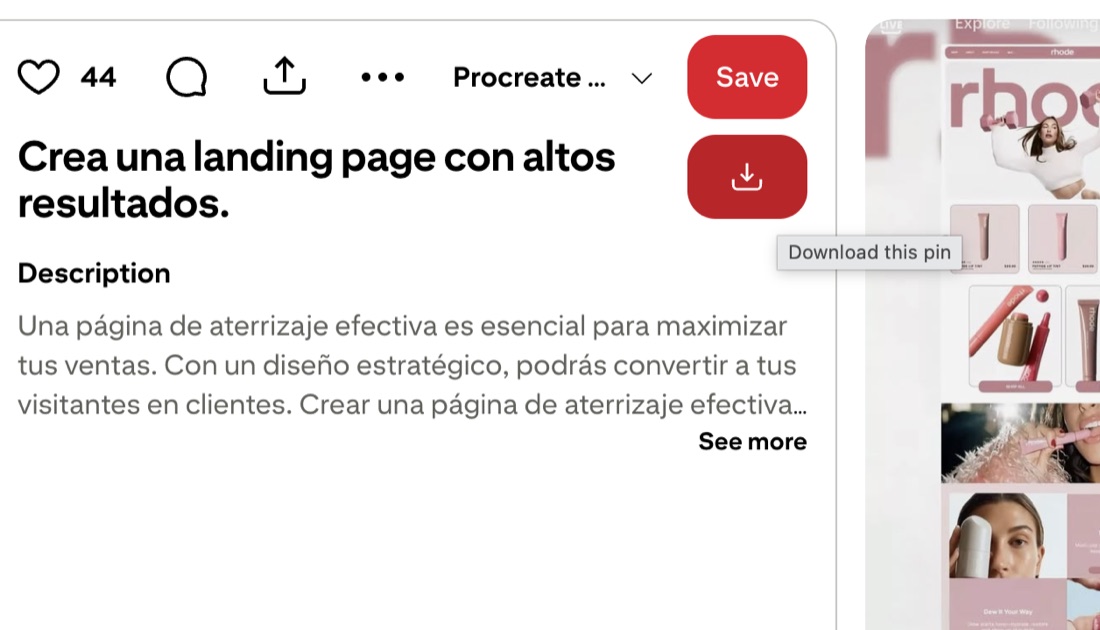
Editing a pin
Open the pin you own and look for the edit (pencil) icon. From there you can rewrite the title and description, fix or change the outbound link, and move the pin to a different board or section. This is where you'd correct a broken link or add keywords you skipped the first time. Save, and the changes apply to the live pin.
What you can't change
You can't replace the image on an existing pin. If the photo is wrong, delete the pin and upload a fresh one. The pin's engagement history doesn't transfer to the new one, so only redo it if the image genuinely needs to change.
Deleting and bulk-moving
Deleting is permanent and lives behind the same edit menu. When you're tidying a whole board, Pinterest's organize tools let you select many pins at once and move or delete them together:
- use the board's organize mode to select multiple pins;
- move a batch into a section or another board;
- delete the ones that no longer fit.
Back up a board before a big cleanup
Bulk deletes are fast and can't be undone, so a large cleanup is exactly when you want a copy first. A browser extension can download an entire board to your drive before you start pruning; Revapin saves the board as full-resolution images, so a mistaken delete costs you nothing.
Edit the text and links freely, replace the image only by re-posting, and grab a backup before any bulk delete. That covers nearly everything you'll ever need to fix on a pin.
Revapin is not affiliated with, sponsored by, or endorsed by Pinterest. Pinterest is a trademark of Pinterest, Inc.