 Revapin
Free Tools for Designing Pinterest Graphics
You can make sharp Pinterest pins without paying for anything. Canva's free plan handles most of it, with the right 2:3 size and readable text. The tools matter less than getting three things right: the dimensions, the legibility, and a consistent look across your pins.
Canva and the free alternatives
Canva's free tier has Pinterest-sized templates, fonts, and stock photos, which is enough for most people. If you want options, Photopea runs in the browser and works like a free Photoshop, and Google Slides can export a pin-sized image in a pinch. Pick one and learn it well rather than bouncing between all three.
Start with the 2:3 size
Pinterest shows tall pins best. Set your canvas to 1000 by 1500 pixels, a 2:3 ratio, before you design anything. Square or wide images get cropped or shrunk in the feed, which wastes the work. Every free tool here lets you set a custom size, so do it first.
Keep the text legible
Most people see your pin small, on a phone. Text that looks fine on your laptop can turn to mush on a screen that size. A few rules help:
- use a big, bold headline font, not a thin script;
- keep the words to a short phrase, not a sentence;
- put text on a solid band or shaded area for contrast.
Shrink your pin to thumbnail size and check that you can still read it.
Pull references in at full resolution
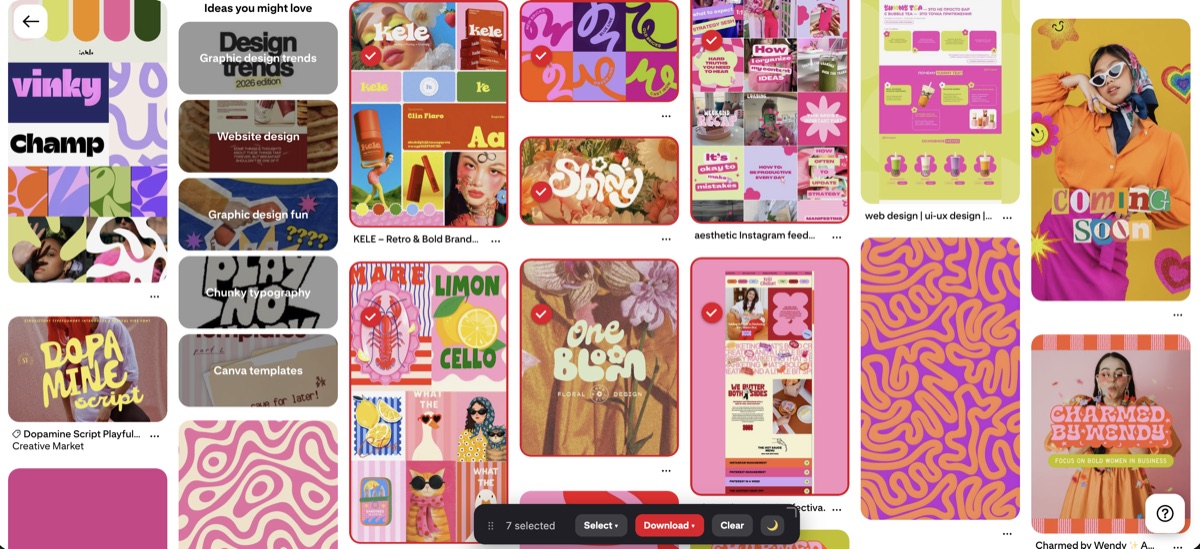
Good design starts from good examples. When you find pins whose layout you want to learn from, you want them at full quality, not a blurry screenshot. Revapin downloads pins at full resolution into a folder, so you can drop those references straight into Canva or your editor and match spacing, color, and type without guessing at a fuzzy copy.
Pick a free tool, set the 2:3 canvas, and make your text readable at thumbnail size. That covers ninety percent of what a strong pin needs, and none of it costs a thing.
Revapin is not affiliated with, sponsored by, or endorsed by Pinterest. Pinterest is a trademark of Pinterest, Inc.