 Revapin
How to Create a Pinterest Account (Step-by-Step)
Signing up for Pinterest takes a few minutes, and most of the steps are the obvious ones. The choices that actually matter come right at the start — the type of account and how you fill out your profile — so it's worth slowing down for those two.
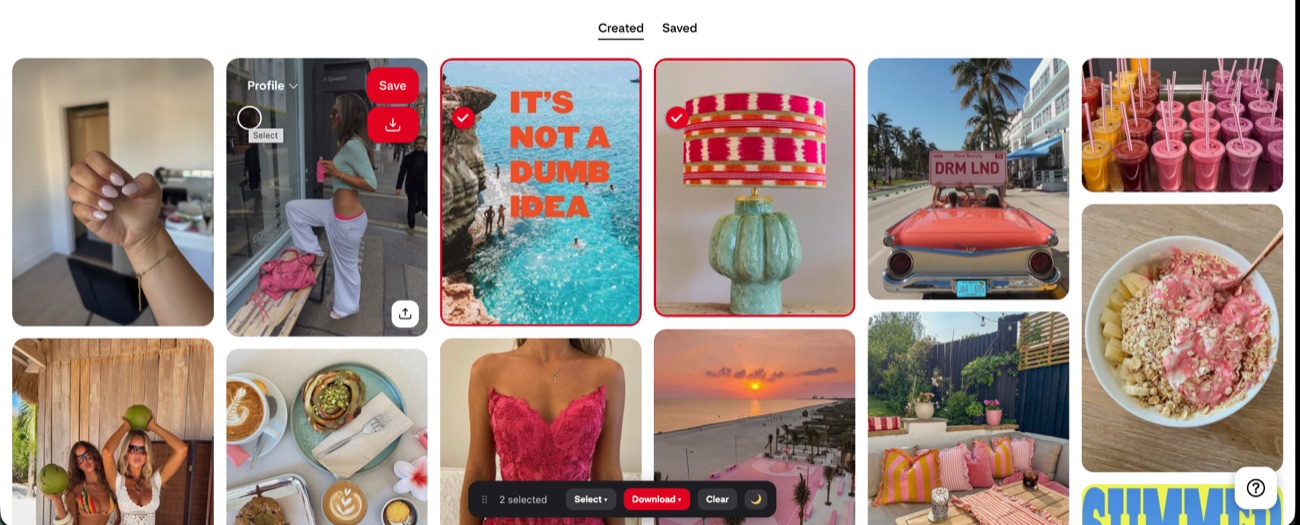
Signing up
Go to pinterest.com and choose Sign up. You can use an email address, or connect a Google or Facebook login if you'd rather skip the password. Pinterest then asks for your age and a couple of topics you're interested in, which it uses to fill your first home feed. Pick things you actually care about, since it shapes what you see from day one.
Personal or business
You'll start with a personal account, and that's fine for saving ideas. If you plan to promote a shop, blog, or service, switch to a free business account instead — it unlocks analytics and rich pins. You can convert later without losing anything, so don't overthink it now.
Filling out your profile
A complete profile helps people trust and find you. Spend two minutes on the basics:
- a clear profile photo or logo;
- a short bio saying what you're about, in words people search;
- your website, verified if it's a business account.
Then make your first board on something you're genuinely planning, and save a handful of pins to it.
Keeping what you save
Once you start collecting, remember that pins live on Pinterest, not on your computer. If a board becomes useful, Revapin downloads it to your own drive as images or a folder, so a deleted pin doesn't take your work with it.
Sign up, pick the right account type, fill out the profile, and start one board. That's a working Pinterest account, and everything else you learn by using it.
Revapin is not affiliated with, sponsored by, or endorsed by Pinterest. Pinterest is a trademark of Pinterest, Inc.