 Revapin
How to Use Pinterest Lens (Visual Search from a Photo)
Pinterest Lens lets you search with a picture instead of words. Point your phone camera at a chair, a plant, or an outfit, and Pinterest finds visually similar pins — useful when you can't name the thing you're looking at. It's built into the Pinterest app, and it takes about ten seconds to try.
Where to find it
Open the Pinterest app and tap the search bar. Next to it is a small camera icon — that's Lens. Tap it and you can either take a live photo or pull one from your camera roll. On desktop the feature is limited, so Lens is really a mobile tool.
Searching from a live shot or a saved image
Point the camera at an object and Pinterest returns pins that match its shape, color, and style. You can also load a screenshot or a photo you already have, which is handy when you spot something in a shop or a friend's home and only got a picture. Cropping to the single item you care about gives cleaner results than a wide shot with clutter around it.
What it's good for
Lens shines in a few specific situations where words fall short:
- finding a product when you don't know its name;
- matching a decor or fashion style you photographed;
- identifying a plant, dish, or material to search further.
Save the results at full resolution
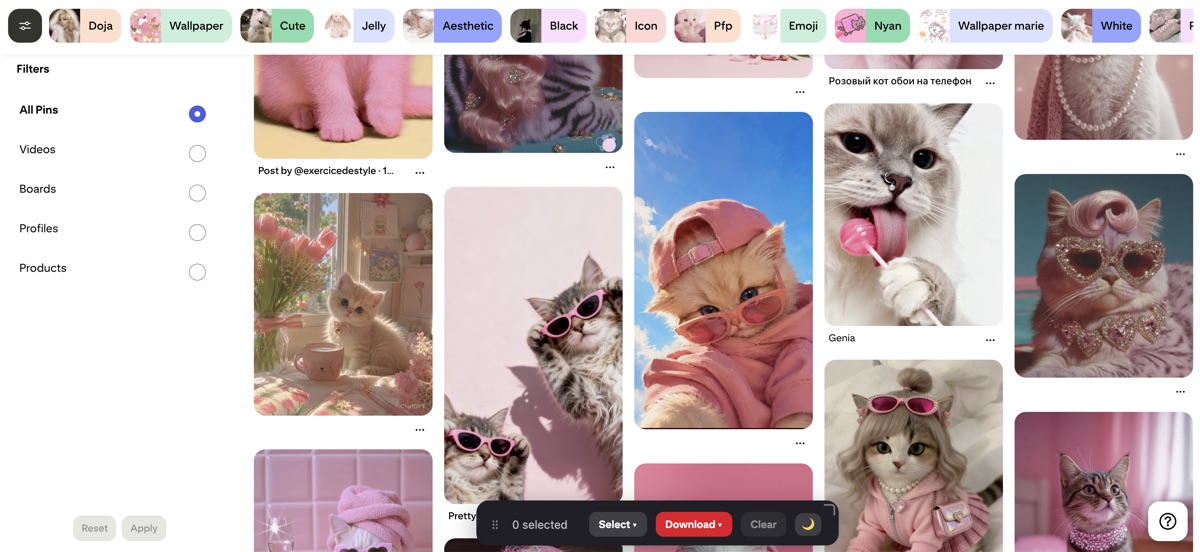
Lens often surfaces the exact reference or product shot you want, but pins can disappear when the original account goes down. A browser extension can grab those results at their full size so they're yours to keep; Revapin downloads pins and boards to your computer as original-quality images.
Next time you're stuck describing something in a search box, take a photo and let Lens do it. It's the quickest path from "that thing" to a page of real options.
Revapin is not affiliated with, sponsored by, or endorsed by Pinterest. Pinterest is a trademark of Pinterest, Inc.