 Revapin
Pinterest Privacy Settings: A Complete Walkthrough
Pinterest gives you real control over what's visible: you can hide boards, keep your profile out of search engines, limit how your activity feeds personalization and ads, and block accounts. Here's where each setting lives and what it actually does.
Secret boards
A secret board is visible only to you and anyone you invite to it. It won't show on your profile, won't appear in search or feeds, and the pins on it stay out of the public view. It's the right tool for gift planning, client work, or anything you're collecting that you'd rather not broadcast. You can make a board secret when you create it, and existing boards can be switched to secret in their settings.
Hiding your profile from search engines
By default your public profile can be picked up by outside search engines. Pinterest has a privacy setting that lets you turn that off, so your profile isn't indexed and doesn't surface in general web searches. If you'd rather people only find you inside Pinterest, or not easily at all, flip that switch. It won't undo indexing that already happened overnight, but it stops the profile from being served up going forward.
Personalization and ad settings
Pinterest uses your activity, and sometimes signals from around the web, to shape what you see and which ads appear. In your privacy and data settings you can dial a lot of that back: limit tracking from other sites, adjust how your activity feeds recommendations, and manage the data used for ads. It won't remove ads, but it narrows how much of your behavior gets folded into them.
Blocking, and keeping private boards truly private
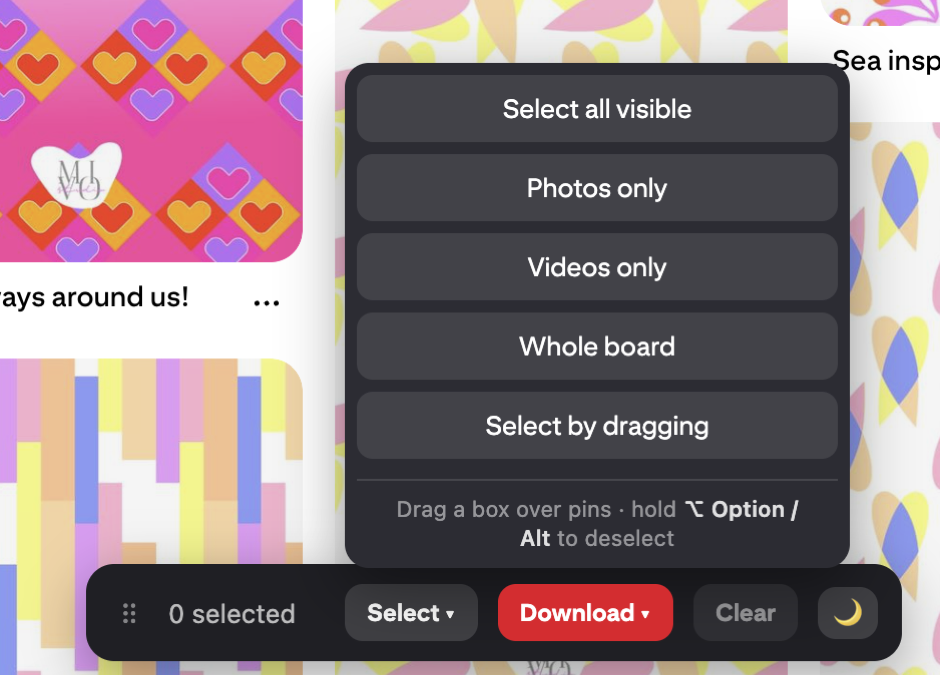
If someone's bothering you, blocking stops them from interacting with you or your pins. That covers the person-to-person side. The harder question is control over your own private boards, because even a secret board still lives on Pinterest's servers, subject to their access, outages, and account rules. The way to make a private board genuinely yours is to keep a copy off the platform. A download extension does this cleanly. Revapin saves your boards, secret ones included, to your own computer as image files, so the private collection you've built is actually under your control and not just hidden inside someone else's app.
A quick privacy pass every so often is worth it:
- set sensitive boards to secret;
- turn off search-engine indexing of your profile if you want to stay low-key;
- review personalization and ad data, and block anyone you need to.
The controls are all there, they're just spread across settings, so few people ever open them. Go through them once, set them the way you want, and keep a local copy of anything private enough that you'd want it even if the account went away.
Revapin is not affiliated with, sponsored by, or endorsed by Pinterest. Pinterest is a trademark of Pinterest, Inc.