 Revapin
How to Share a Pinterest Board with Collaborators
A collaborative board on Pinterest lets several people add pins to the same board, which is how teams, couples, and clients build a shared collection. You invite people from the board itself, and they can pin as soon as they accept. For client work, a secret shared board keeps the whole thing private.
Inviting collaborators
Open the board you own and look for the option to add collaborators, usually a person-plus icon near the board title. Enter a name, username, or email and send the invite. Once they accept, they can add pins, and depending on your setting, invite others too. You can remove anyone later from the same menu.
Group boards vs. your own
A group board is just a board with more than one contributor. The board still has one owner — you — who controls the settings and can remove people or pins. Everyone else adds to it but doesn't control it, which keeps a shared moodboard from turning chaotic.
Secret boards for client work
For a client or a surprise project, make the board secret and then invite only the people involved. A secret shared board stays off your public profile and out of search while still letting your collaborators pin to it:
- create the board and toggle it to secret;
- invite only the client or teammates;
- make it public later, or keep it private for good.
Download a shared board to keep a copy
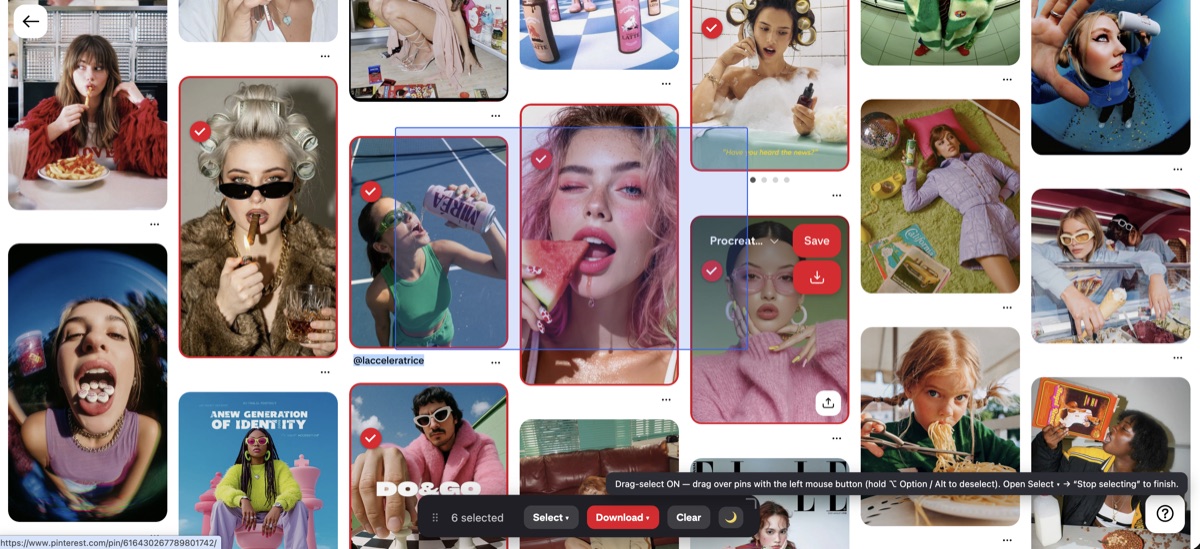
Shared boards depend on other people, and any collaborator or the owner can remove pins or leave, taking their contributions with them. A browser extension can download the whole board to your computer so you hold a fixed copy; Revapin saves a shared board as full-resolution images on your own drive, independent of who stays or goes.
Invite the right people, keep client boards secret, and pull a copy of anything you can't afford to lose. That's collaborative pinning without the usual worry about someone else's changes.
Revapin is not affiliated with, sponsored by, or endorsed by Pinterest. Pinterest is a trademark of Pinterest, Inc.