 Revapin
Pinterest Workflow Tips for Designers, Illustrators, and Content Creators
Pinterest gets messy fast when you use it for real work. A hundred pins into a project, the board that was meant to help you is a wall of images you scroll past to find the one you actually wanted. A better setup saves a lot of that searching later, and most of it comes down to how you organize and what you do with pins once they're saved.
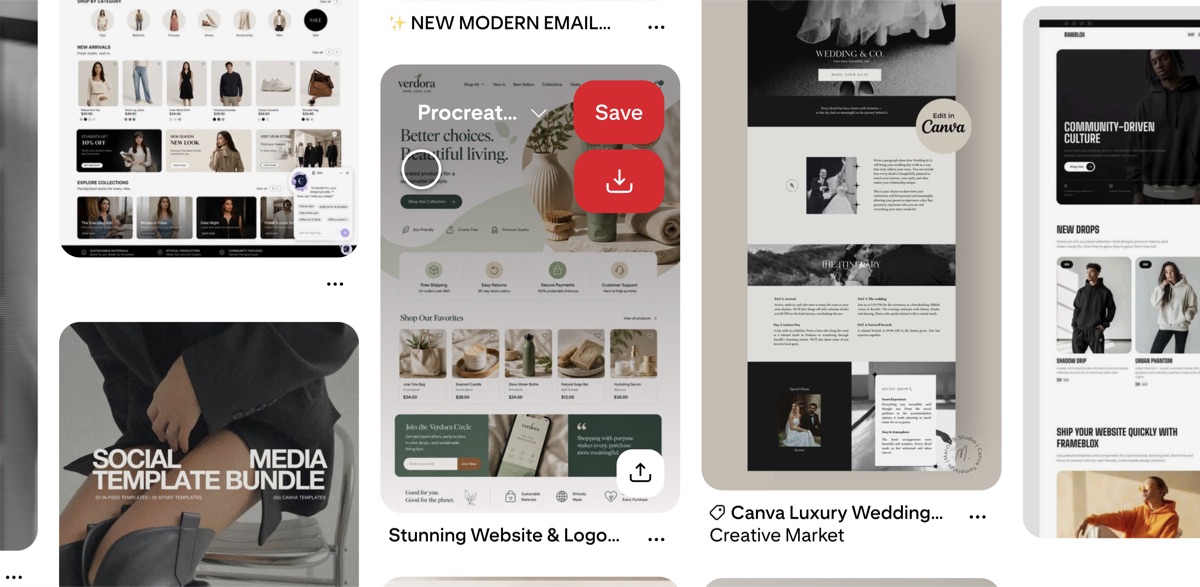
Organize by what you'll search for later
Sections are the part most people skip, and they're what keeps a board usable past the first fifty pins. Name them by how you'll look for things, not by loose categories:
- a branding board: logos, color palettes, packaging, type;
- an interiors board: materials, lighting, furniture, layout.
With that in place, when a client asks about packaging you're not scrolling past forty wordmarks to find it. It costs a couple of seconds each time you pin, and it turns a 300-pin board into something you can move around in.
Keep client work off your public profile
Secret boards don't appear on your profile or in anyone's feed, so that's where the messy early collecting belongs, especially for projects you can't show yet. You can gather forty rough directions, share the board with a collaborator, and no one sees the half you ended up cutting.
Getting better search results
The default feed leans on whoever you already follow, which narrows what you see. Following topics instead of only people widens it back out, and the “More ideas” button on a board pulls related pins around that exact theme. After you search, the filter chips at the top of the results narrow things by color and style, which is how you get from “kitchen” to “green kitchen with wood counters” without digging through everything in between.
Making something you can hand over
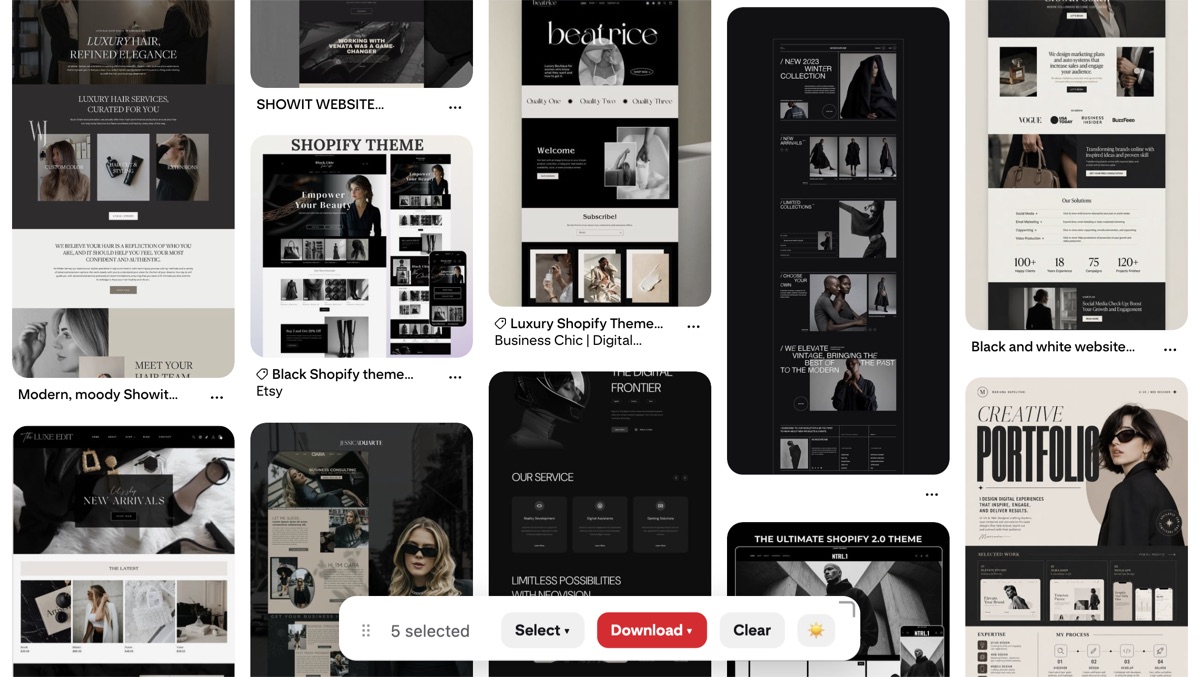
Clients rarely want a Pinterest link. They want a file they can open in an email or drop into a deck. A board export tool can turn the same collection into a single PDF moodboard, which reads as more finished than sending someone off to scroll your board. Revapin exports a whole board or one section as a PDF, and can save plain image folders too if you'd rather keep the files loose. It's free to add, so you can export one board and see how the PDF looks before you rely on it for a client.
Saving motion references
If you work in animation or short-form content, the video pins are worth keeping, and Pinterest makes that harder than it should be since there's no save button on them. Pulling them down as MP4s lets you scrub through a movement frame by frame instead of hunting for the pin again every time you need it. There's a separate walkthrough for saving Pinterest videos if that's your main use.
Working from your own files
Bouncing back to Pinterest every few minutes while you design breaks your focus each time. Collecting everything into one board first, then downloading it to a folder, lets you work from local files and stay off the site while you're actually making something.
Backing up boards that matter
Pins can disappear over time, accounts can be removed, and old source links often stop working, so a board you've relied on for years is less permanent than it feels. When it's important to your work, a local copy means one deleted pin doesn't quietly take a key reference with it.
Most of this is just habit: name your sections, keep client work private, and get the pins that matter onto your own machine before you need them. For anyone using Pinterest as a work tool rather than a scrapbook, that last part tends to be the piece that's missing.
Revapin is not affiliated with, sponsored by, or endorsed by Pinterest. Pinterest is a trademark of Pinterest, Inc.